

Managing groups
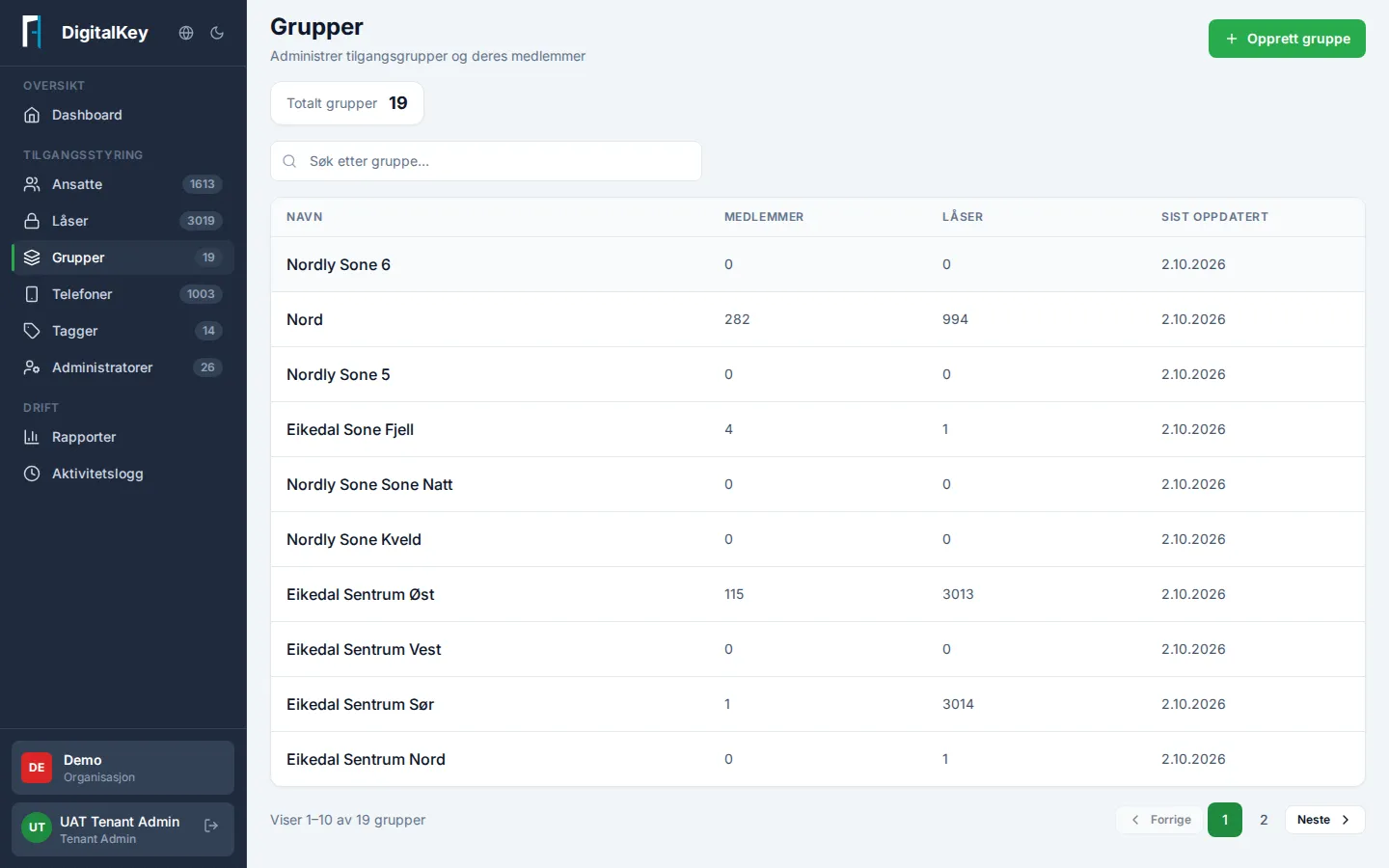
Groups are the core of access management: a group collects a set of locks and a set of employees, and every member can open every lock in the group.
Two kinds of groups
Section titled “Two kinds of groups”- Manually managed — you maintain the member list yourself in the portal.
- Synced with Entra ID — membership is pulled automatically from your organization’s own user directory (Azure AD / Entra ID). You don’t edit these groups in the portal; membership is managed in Entra ID.
Common tasks
Section titled “Common tasks”| Task | How |
|---|---|
| Create a group | Create Group, give it a name and description |
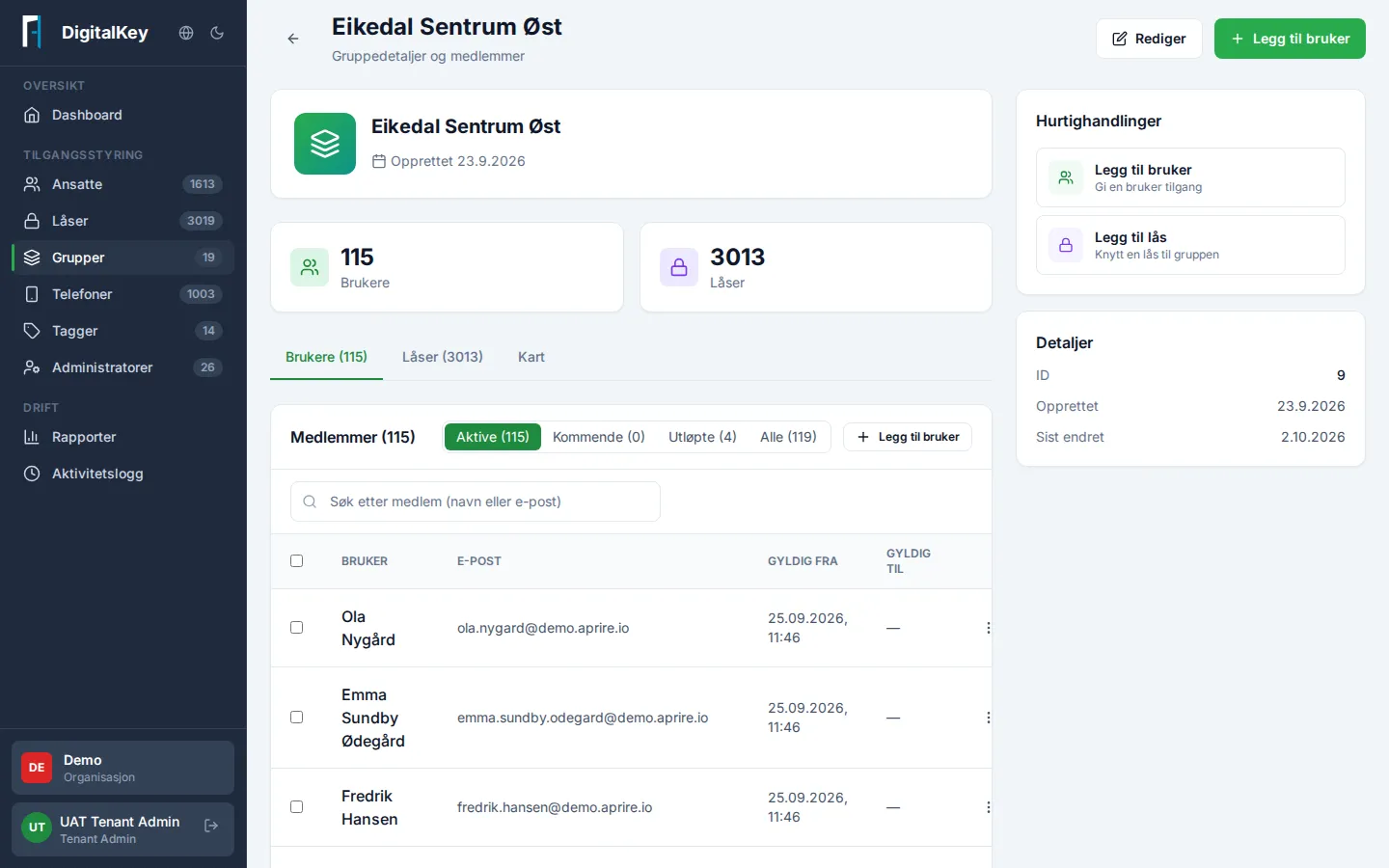
| Add employees | Open the group → Users tab → Add User |
| Attach locks to the group | Open the group → Locks tab → Add Lock |
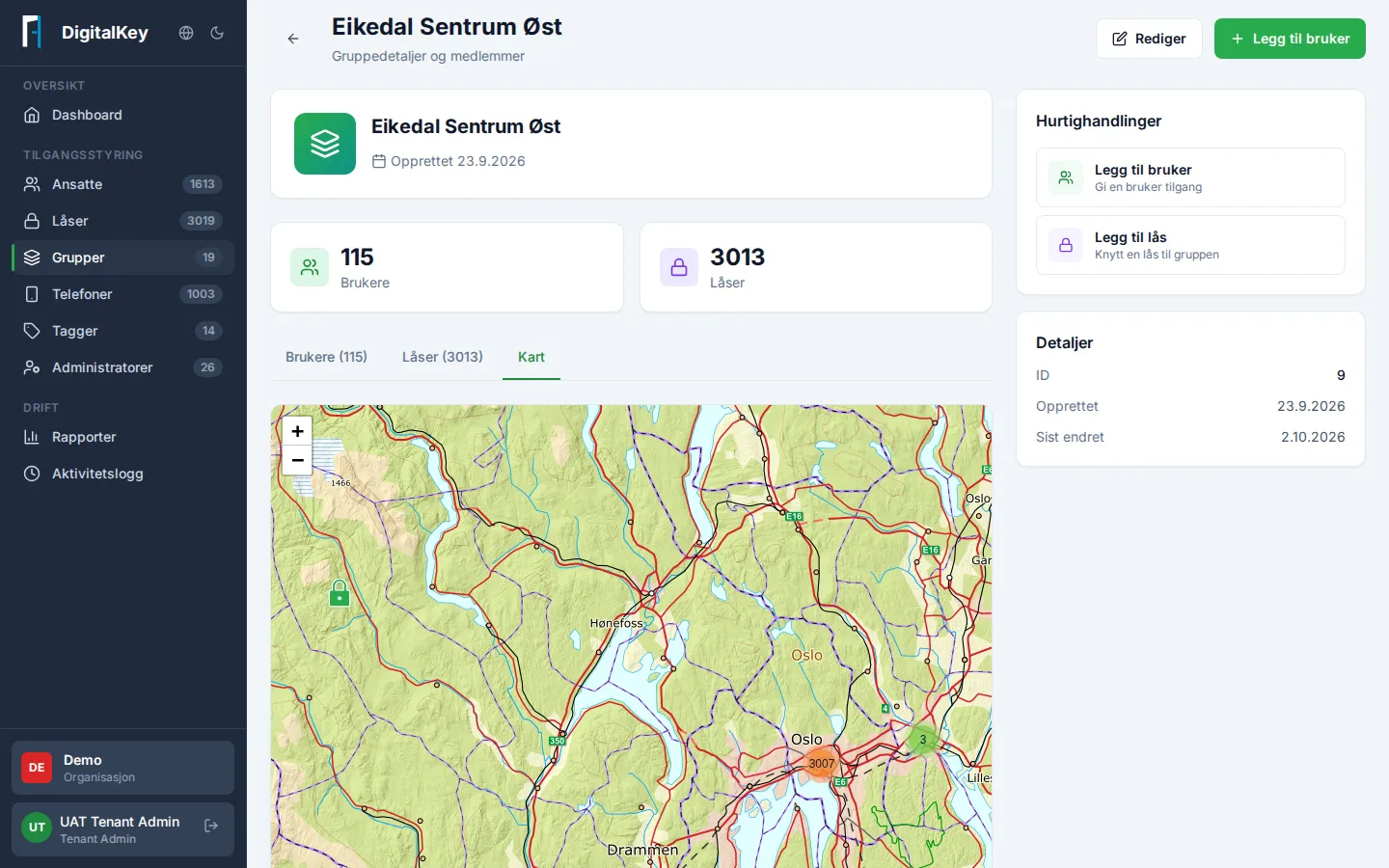
| See the locks on a map | Open the group → Map tab |
The member list
Section titled “The member list”On the Users tab you can filter members by Active, Upcoming, Expired, or All. Each member has a status:
- Upcoming — a membership with a Valid From date in the future; access starts automatically on that date.
- Expires today — the member was removed or expires today. Access lasts until midnight, so the row stays for the rest of the day.
- Expired — the membership has ended.
If you remove a member by mistake, you can choose Undo removal on the row as long as you stay on the page.
Worth knowing
Section titled “Worth knowing”- Removing an employee from a group revokes their access to all locks in that group, but they keep access from their other groups.
- Removing a lock from a group revokes that lock for all of the group’s members.
- Group memberships can be time-limited with Valid From/To — see Grant an employee access.
- If a group has a service-recipient lock without its prerequisite door (for example the main door), the portal flags it and offers to add the doors — see relationships between locks.
- Membership of Entra-synced groups is managed in Entra ID, not in the portal.