

Managing employees
Under Employees you manage everyone who needs digital key access in your organization: home care staff, caretakers, temps, and others.
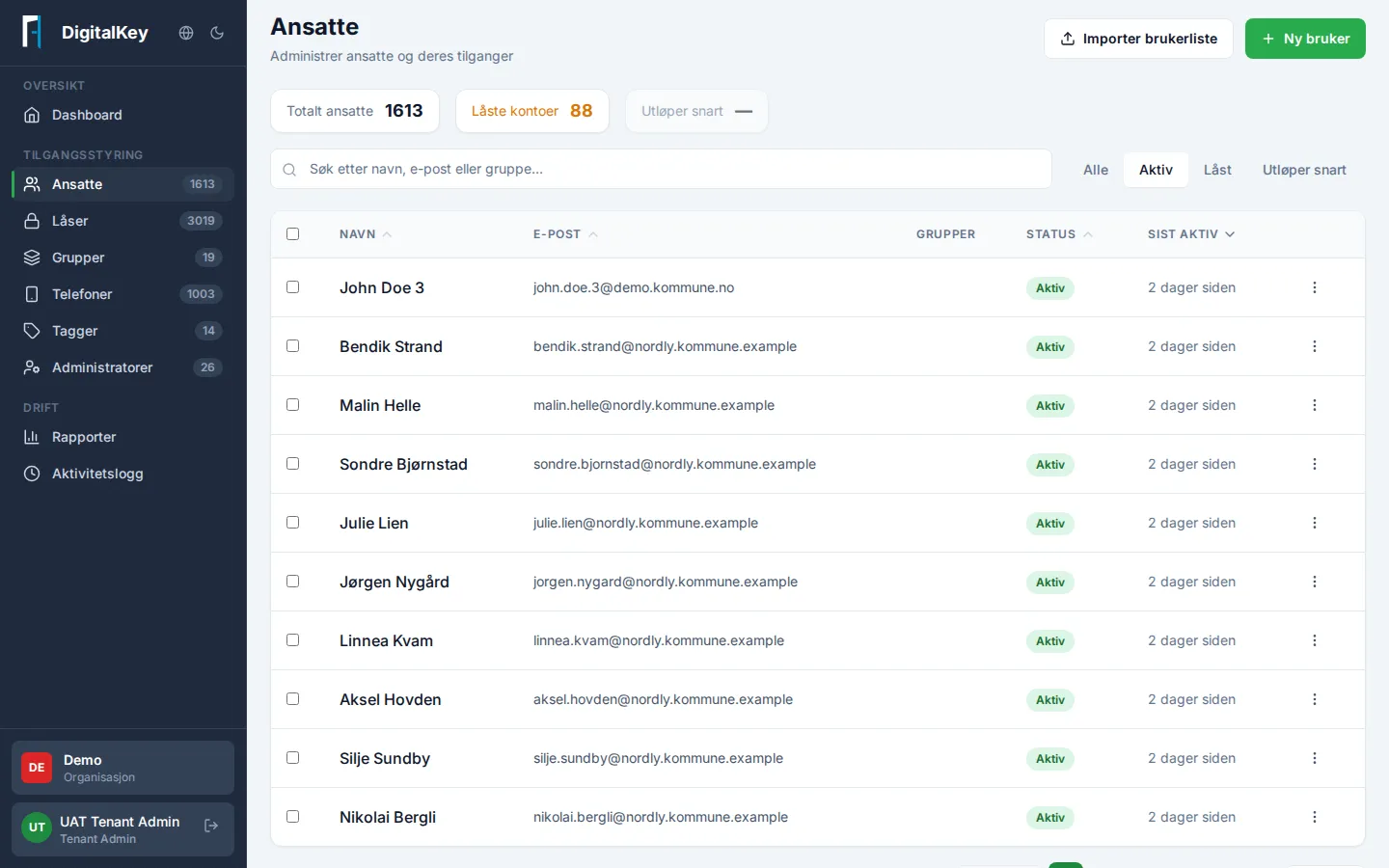
The essentials on this page
Section titled “The essentials on this page”- The overview cards at the top show total employees, who’s active today, locked accounts, and access expiring soon.
- Search and filter the list to find a specific employee quickly.
- Click an employee to open user details with group memberships, accessible locks, and activity log.
Common tasks
Section titled “Common tasks”| Task | How |
|---|---|
| Create a new employee | New User in the top right — see the dedicated guide |
| Grant access to locks | Add to Group — see Grant an employee access |
| Suspend access temporarily | Lock Account — the account can be unlocked again at any time |
| Time-limit an access | Set Expiration Date or set Valid From/To on the group membership |
| Register many at once | Import User List from a file |
Locked accounts
Section titled “Locked accounts”A locked account loses access to all locks immediately, but keeps its groups. When you unlock the account again, the employee gets their access back exactly as it was. This is the fastest and safest way to shut off access — for example after a lost phone, or when someone leaves on short notice.