

Grant an employee access
All access in the portal follows the same model:
Employee → Group → Locks
You never grant access directly from a person to a single lock. Instead, locks are collected in access groups (for example a zone, a route, or a building), and you manage access by adding and removing employees from those groups.
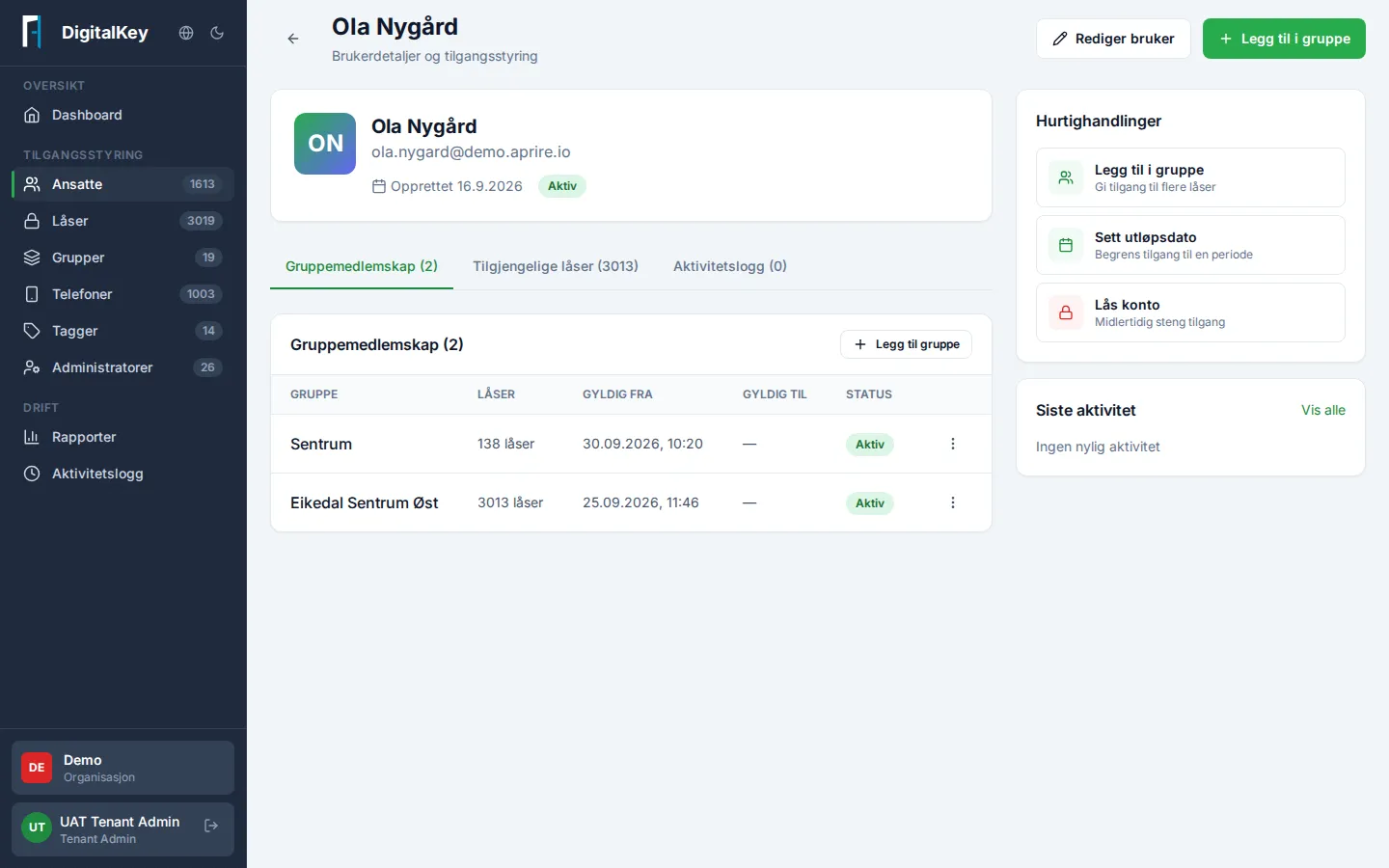
Grant access
Section titled “Grant access”- Open the employee under Employees.
- Select Add to Group.
- Pick the right group and confirm.
The employee immediately gets access to all locks in the group.
Time-limit an access
Section titled “Time-limit an access”When needed, a group membership can apply for a period — useful for temps and short-term assignments:
- Valid From — access starts automatically on the date (shown as “Upcoming” until then).
- Valid To — access ends automatically on the date. The overview shows who’s “Expiring soon”.
Revoke access
Section titled “Revoke access”- Remove from Group — the employee loses access to all locks in that group, but keeps other group memberships. Access lasts until the end of the day and ends at midnight, so the row stays marked “Expires today”. Changed your mind? Choose Undo removal on the row while you’re still on the page.
- Lock Account — shuts off all access immediately, but keeps the memberships. Use this for lost phones or urgent situations, and Unlock Account once everything is resolved.