
Troubleshooting
Here are the most common problems in the DigitalKey app, what you see on screen, and what to do. Remember the main rule: DigitalKey gets your keys ready, and Unloc opens the door. Many errors during the actual door opening therefore come from Unloc and appear as a dialog in DigitalKey.
The app is in Norwegian, so the messages below are quoted in Norwegian with an explanation in English.
Unloc is not installed
Section titled “Unloc is not installed”When you try to download keys or open a door, you see:
«Kunne ikke åpne Unloc-appen. Sjekk at Unloc er installert.» (Could not open the Unloc app. Check that Unloc is installed.)
DigitalKey could not open the Unloc app. This usually means Unloc is not installed, or is not fully set up.
- Install Unloc from the App Store or Google Play. See getting started.
- Open Unloc once and finish the setup there.
- Go back to DigitalKey and try again.
Your keys did not download
Section titled “Your keys did not download”Downloading launches Unloc to fetch your keys for offline use. If it fails, the keys may not have been fetched – in the problem report this is called «Fikk ikke nøkler» (Did not get keys).
- Check that you have a connection (Wi-Fi or mobile data). Without a connection you see «Krever internettilkobling for å laste ned nøkler» (An internet connection is required to download keys).
- Check that the keys are ready before you download. If some are still being processed, the app warns with «Nøkler behandles» (Keys are being processed) – wait until they are ready, or choose «Last ned likevel» (Download anyway) if you must.
- Try downloading again. When the keys are downloaded you see «Nøkler lastet ned for frakoblet bruk (kl. HH:MM)» (Keys downloaded for offline use (at HH:MM)).
If you see «Nøkkelen er ikke klar ennå. Vent litt og prøv igjen.» (The key is not ready yet. Wait a moment and try again.), the key is still being processed on our side. Wait a few minutes and try again. Read more under your keys.
Sign-in failed
Section titled “Sign-in failed”During sign-in you may see:
«Innlogging feilet. Prøv igjen.» (Sign-in failed. Try again.)
- Check that you have a connection, and try again.
- Use the correct account and complete the whole sign-in, including any one-time code or app approval.
- If that does not help, close the app completely and open it again.
Offline or no connection
Section titled “Offline or no connection”The app distinguishes between Tilkoblet (online – you have a connection) and Frakoblet (offline – no connection). Downloaded keys work while you are offline too, but some things need a connection.
- Signing in needs a connection. Without one you see «Ingen internett» (No internet) and «Trenger internett for å logge inn» (You need internet to sign in) – connect and tap «Prøv igjen» (Try again).
- Refreshing the key list needs a connection. Without one you see «Mangler internett for å oppdatere» (No internet to refresh).
- Downloading keys needs a connection. See the section above.
Errors when you open a lock
Section titled “Errors when you open a lock”The actual door opening happens in Unloc. If something goes wrong, Unloc sends the error back to DigitalKey, which shows it as a dialog. These are the most common:
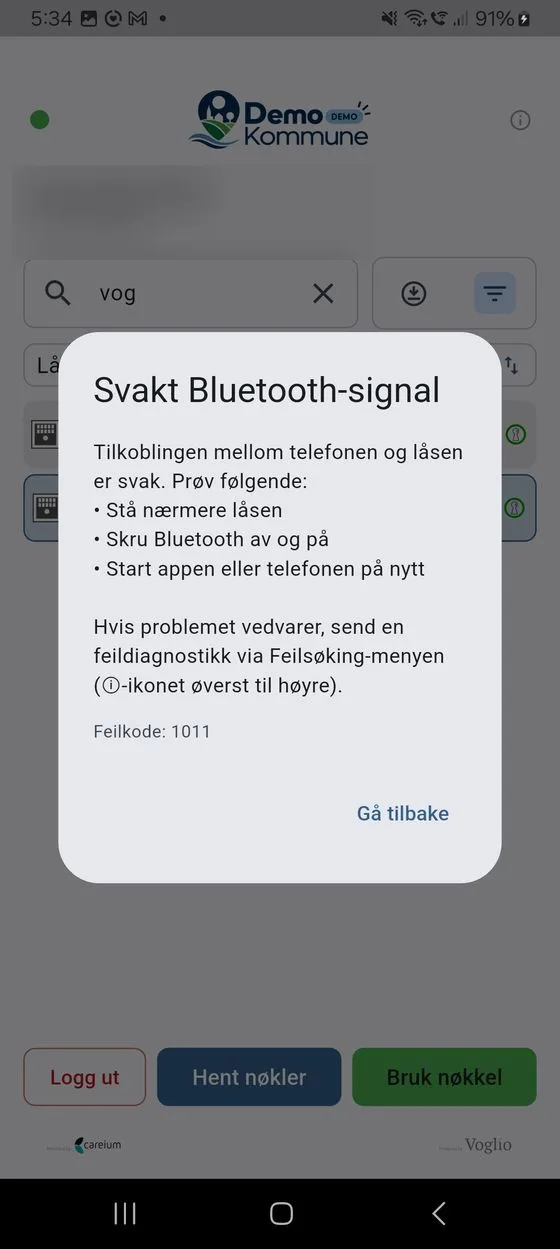
- «Svakt Bluetooth-signal» (Weak Bluetooth signal) – The connection between the phone and the lock is weak. Stand closer to the lock, turn Bluetooth off and on, or restart the app or phone.
- «Ingen internett-tilkobling» (No internet connection) – The phone is having connection problems. Turn off Wi-Fi and use mobile data (4G/5G), or restart the router if you must use Wi-Fi.
- «Autentisering mot lås mislyktes» (Authentication with the lock failed) – An error occurred while authenticating with the lock. Confirm you are standing at the right lock, hold the phone still against the lock, and restart the app or phone. If it persists, contact your service manager (Tjenesteansvarlig).
- «Trykk på låsen igjen» (Tap the lock again) – The lock did not respond as expected. Tap the lock and open it again.
- «Problem med Nimly-lås» (Problem with a Nimly lock) – An error with a Nimly lock. Stand closer to the lock, turn Bluetooth off and on, or restart the app or phone.
- «Midlertidig feil» (Temporary error) – Wait a moment and try again, or restart the app.
- «Feil i Unloc-app» (Error in the Unloc app) – Update to the latest version of the Unloc app and try again.
- «Opplåsing mislyktes» (Unlocking failed) – An unknown error during unlocking. Try again, or contact your service manager if the problem persists.
Send a diagnostic report
Section titled “Send a diagnostic report”If you cannot solve the problem yourself, you can send a diagnostic report to support. Open the Feilsøking (Troubleshooting) menu via the ⓘ icon at the top right of the key list.
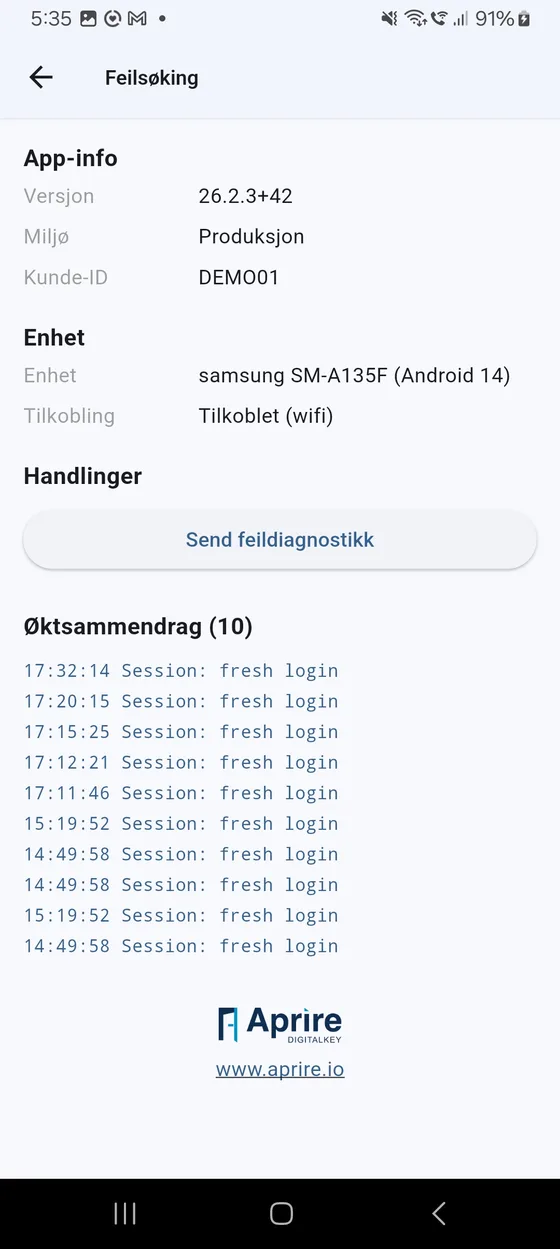
- Tap «Send feildiagnostikk» (Send diagnostic report).
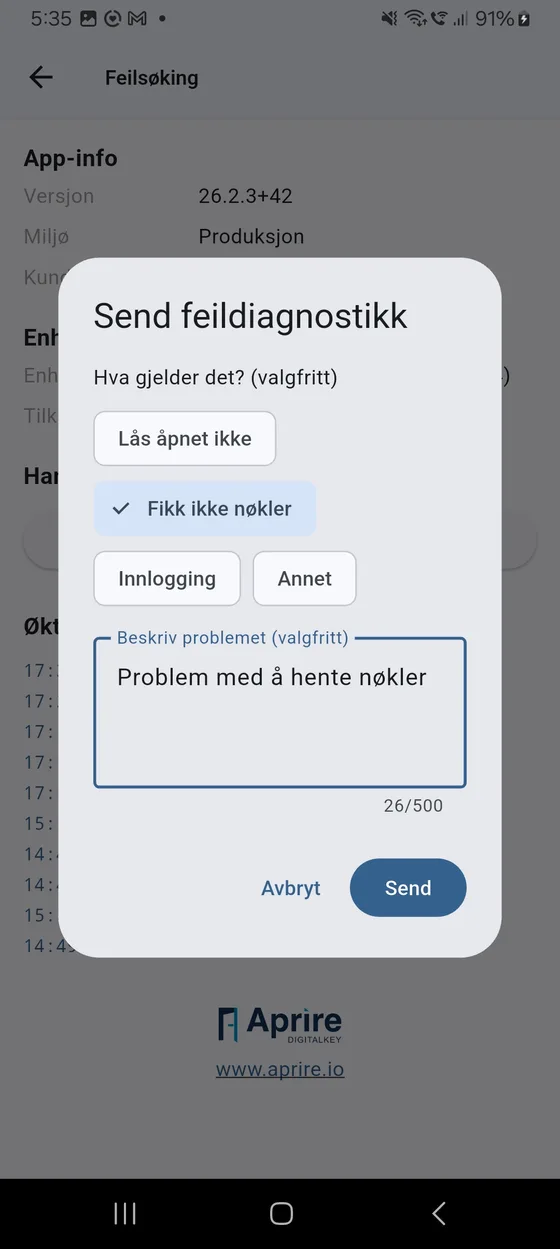
- Optionally choose «Hva gjelder det? (valgfritt)» (What is it about? (optional)) – for example Lås åpnet ikke (Lock didn’t open), Fikk ikke nøkler (Didn’t get keys), Innlogging (Sign-in) or Annet (Other).
- Write a short explanation under «Beskriv problemet (valgfritt)» (Describe the problem (optional)). Both fields are optional – an empty message is sent too.
- Tap send. You get the confirmation «Feildiagnostikk sendt» (Diagnostic report sent) once it is received.